Step-by-step guide
Archive your website for regulators
To archive your firm's website for regulators in 2026, choose the ProofSnap Website Archive plan ($49 a month), add each public page you must keep as an automated capture, and let ProofSnap check it once a day. Whenever the daily check finds changed text, ProofSnap saves a new sealed, dated copy you can download and produce to a regulator.
Written for financial advisers, broker-dealers, insurers and other regulated firms that need a dated record of what their own website said. Every screen below is redrawn from the dashboard's own interface.
By Radim Motycka, Founder and Lead Engineer at ProofSnap, who built the dashboard, the API and the capture pipeline this guide walks through. ·
Plan
$49 a month
Pages watched
Up to 30, daily
Copies kept
10 years while subscribed
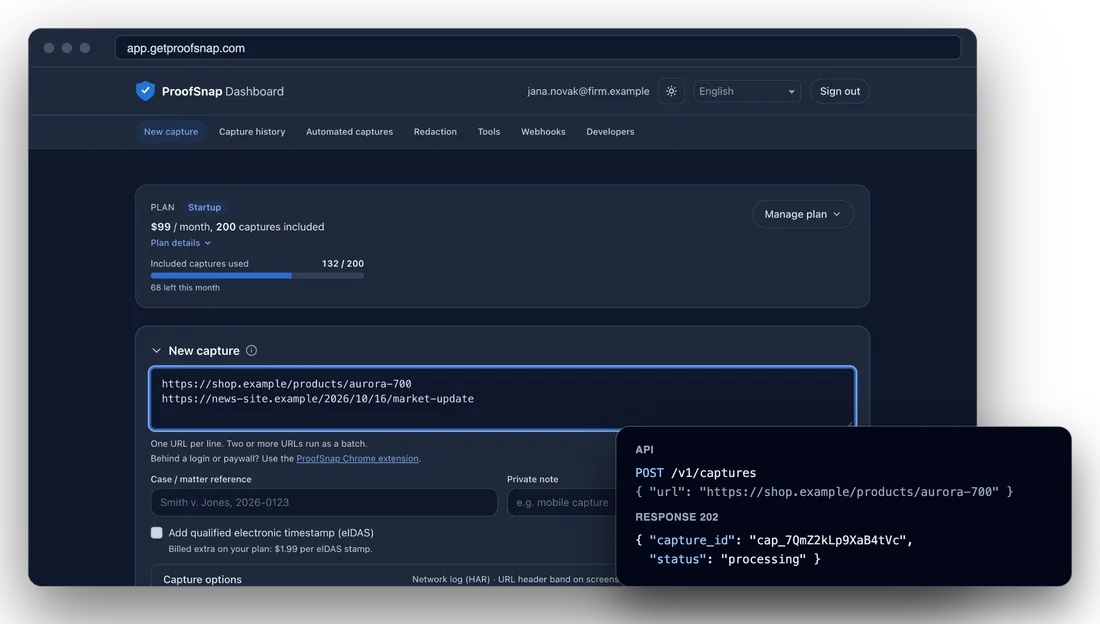
The ProofSnap Dashboard with a new capture, next to the same capture started through the API.
Before you start
- A ProofSnap Dashboard account with a confirmed email address. Getting started with the dashboard shows how to create one.
- The addresses of the public pages you must keep on record, up to 30.
- A payment card for the plan, entered in the Stripe checkout.
Step 1
Choose the Website Archive plan
Website Archive is the dashboard plan for regulated firms that need to keep their own website on record. In the Choose a plan card, it is the last group, below the API plans and the Legal evidence workspace. Click Choose and pay in the Stripe tab that opens, as described in Getting started with the dashboard. Already on another plan? Open Manage plan on the plan card and use Change plan.
- 1Monthly or Annual. $49 a month, or $490 a year with annual billing, which gives you two months free.
- 2Website archiving for regulated entities. The group with the Website Archive plan.
- 3What is included. 100 captures a month, then $0.60 per capture, up to 30 pages checked once a day, and every copy stored twice, in two EU regions.
- 4Choose. Opens the secure Stripe checkout in a new tab.
Choose a plan
Website archiving for regulated entities
Keep your own website on record for regulators.
Website Archive
$49 /month
100 captures / month3
Watch up to 30 pages, such as your home, fees, team and disclosures pages, or an article about your firm. Each page is checked once a day and a new sealed copy is saved when its text changes; you can also capture any page yourself right after you publish. Every copy is stored twice, in two EU regions, and kept for 10 years from the last day it was in use. 100 captures a month included, then $0.60 each. Optional eIDAS timestamps are billed extra at $1.99 per stamp. API keys on this plan are read only: they list, download and verify captures and receive events, for example in Zapier. You start new captures and automated captures in the dashboard.
4ChooseStep 2
Decide which pages to keep on record
Before you add anything, make a list. Each page address becomes one automated capture, and the plan watches up to 30 at a time. Financial advisers, broker-dealers and insurers usually start with the pages a client relies on when choosing a firm:
- 1Home page. What the firm says about itself first.
- 2Fees and pricing. Often the page where a later change matters most.
- 3Team pages. Who is named, with which titles.
- 4Disclosures. Notices and terms your firm publishes for clients.
- 5Articles about your firm. A press piece or a profile page, on your site or elsewhere.
- 6Public pages only. The dashboard captures public pages from ProofSnap's servers. A client portal behind a login needs the ProofSnap browser extension.
Step 3
Add a page as an automated capture
Go to Automated captures and click + New. For an archive, set the mode to On change (monitor): the page is checked on its cadence, and a full sealed capture is taken on the first run, after each detected change and when a Full capture is due. The capture options you set here apply to that full capture. For other uses of the same form, see How to monitor web page changes as evidence.
- 1+ New. Opens the form. The counter next to the title shows how many of your 30 automated captures are active.
- 2Address. The full address of one page.
- 3Mode and Cadence. On change (monitor) and Daily. On this plan, Daily is the shortest cadence; Weekly is also available.
- 4Full capture. Only when the page changes, or a fresh sealed copy at least every 30, 90, 180 or 365 days even when nothing changed.
- 5Alert. Sends the Page change detected event to your webhooks, either On any change or Only on text changes, for example to a Zap that notifies your team.
- 6Reference and eIDAS. An optional reference that goes into every package, and an optional qualified electronic timestamp under the eIDAS Regulation at $1.99 for every copy saved.
- 7Create. Saves the automated capture. The list shows when its first check runs, under Next run.
Automated captures
4 / 30 activeAutomated captures count toward your monthly quota. Once you pass your included allowance, each further capture is billed as overage.
Mode
Cadence
Captures run only when the page changes, so the number depends on the page.
Full capture
Alert
Case / matter reference
Monitoring runs a lightweight probe each cycle; capture options apply to the full capture taken when a change is detected.
Step 4
Check the list of watched pages
Repeat step 3 for every page on your list. Each one then appears as a row in the Automated captures list, so you can see at a glance that every page is covered.
- 1Source, Cadence, Next run, Status. The page address, On change (monitor) with the chosen alert, when the next check runs, and whether it is active.
- 2Paused, with a reason. If a page is paused, the reason shows here, for example failed 5 times in a row or monthly maximum reached. Resume it once the cause is fixed.
- 3Edit, Pause, Delete. Change the settings of a page, stop it for a while, or remove it. Paused pages do not count toward your 30.
- 4Captures already made stay. Pausing or deleting an automated capture stops the checks; the sealed copies it made stay in Capture history.
Step 5
What happens when a page changes
There is nothing for you to do: the archive runs by itself. This is what ProofSnap does with each page, every day.
- 1First check: the first copy. The first run saves a sealed copy of the page, the starting point for later checks.
- 2Daily check. ProofSnap loads the page and compares its text with the text from the previous check. The check itself makes no package and is not billed. A blank or error page is not treated as a change.
- 3Text changed: a new sealed copy. A full capture runs and seals a new evidence package: screenshot, page HTML and text, an evidence PDF, SHA-256 hashes, an RSA-signed manifest and an OpenTimestamps (Bitcoin) proof. It counts as one capture.
- 4No change: the copy stays current. The check is recorded on the current copy, so its 10-year retention runs from the last day the page still had that text.
- 5Full capture without a change. If you set one in step 3, a fresh sealed copy is saved once the newest one is older than the interval you chose.
- 6Monthly maximum. A run that would exceed your monthly maximum is skipped, and the row says last run skipped, monthly limit reached. The page is checked again on a later run once the monthly maximum allows it.
Step 6
Capture a page right after you publish
The daily check catches text changes, but only at its next run. When you publish something important, such as a new fee schedule or a new disclosure, you can seal a copy right away.
- 1New capture. Paste the page address, add the same reference you use for the automated capture, and click Capture.
- 2One capture. It counts as one capture, like a copy saved by the daily check, and appears in Capture history with the others. A capture usually takes 30 to 90 seconds.
Step 7
Review the archive history
Every sealed copy lands in Capture history. To see the versions of one page, open Filters and pick it under Automated capture; the list then shows every copy that automated capture made, not just the ones already loaded. In a capture's details, All versions of this page does the same for any page address.
- 1Filters. Domain, automated capture and a custom period. Only one of domain, automated capture or page address can be active at a time.
- 2Active filter. Shows which page you are looking at. The cross removes it.
- 3Type and date. Automated marks a copy saved by the daily check; a copy you started yourself shows only the device (for example Desktop).
- 4Proofs and Download ZIP. BTC for the OpenTimestamps (Bitcoin) proof, eIDAS when the copy has a qualified timestamp, and the download of the sealed package.
Capture history
CompareRefresh| Source | Type3 | When | Status | Proofs4 | |
|---|---|---|---|---|---|
| example-advisers.com/fees | AutomatedDesktop | Oct 19, 2026 | Completed | BTC eIDAS | |
| example-advisers.com/fees | AutomatedDesktop | Aug 4, 2026 | Completed | BTC eIDAS | |
| example-advisers.com/fees | AutomatedDesktop | Mar 2, 2026 | Completed | BTC eIDAS |
Step 8
Compare two versions
When someone asks what the fees page said before a change, compare two sealed copies. Open Tools, then Compare captures.
- 1Before and After. Choose the earlier capture as Before and the later one as After. Copies from one automated capture are taken with the same settings, so unless you edited the settings in between, they compare like for like.
- 2Compare. The comparison report shows What changed on the page, with the removed and the added text side by side, plus changed images and page metadata.
- 3Sealed on its own. The comparison is a new evidence package with its own hashes and timestamps. It counts as one capture.
- 4Originals untouched. Both copies stay exactly as they were sealed, so either side can still be checked on its own.
Step 9
Place a legal hold
When an inquiry or a dispute starts, freeze the copies it concerns. As long as you are on a plan that keeps your data (including Archive only), a capture under legal hold cannot be deleted, either manually or automatically when its retention period ends. When the subscription ends, the holds are released with it, and step 11 applies. Legal hold is available on paid plans, for live (non-test) captures only.
- 1Place legal hold. In Capture history, open a capture's details and click Place legal hold.
- 2Reason (optional). Up to 200 characters, for example the name of the inquiry. It is shown in the capture's details.
- 3Confirm. The capture shows Legal hold, and the Legal hold chip in Capture history lists every held capture.
To hold many copies at once, select them in Capture history and use Place legal hold on the selection, or filter by your domain and click Place legal hold on all captures from this domain. Remove legal hold in the details releases it; for a while afterward, the details still show the date before which the capture cannot be permanently deleted.
1Place legal hold
A capture under legal hold cannot be deleted, either manually or automatically when its retention period ends.
Reason (optional)
27 / 200
Step 10
Export the archive for an examination
When a regulator asks what your website showed, you hand over the sealed packages for that period. Each one can be checked without ProofSnap; see How to verify an evidence package.
- 1One version. Download ZIP on its row in Capture history.
- 2The whole archive. Open Plan details on the plan card and click Download all captures in the Retention row. The export is prepared in the background, so you can keep working.
- 3What is inside. Each export ZIP contains captures.csv, README.txt and the original sealed packages, unchanged. A large archive comes in several parts.
- 4Verify before you send. You can check a package with Verify a package in Tools: drop the ZIP there. Anyone can run the same checks in the free Trust Verifier or with the scripts in each package's verification/ folder.
A package you share with someone outside the firm may contain client names or other personal data. How to redact a web capture shows how to seal a redacted copy while the original stays unchanged. Developers can also list and download the archive through the read-only API; see the API documentation.
Step 11
Keep the archive if you cancel
An archive has to outlast the plan that made it. When a subscription ends, the captures are kept for 30 days and then permanently deleted, and a banner shows the date. The Archive only plan, $9 a month, keeps every package readable, downloadable and verifiable. It makes no new captures, and automated captures are paused.
- 1The deletion date. Shown in the banner once the subscription has ended.
- 2Download all captures. Lets you take the whole archive with you.
- 3Keep them for $9/month. Switches to Archive only. You can also switch before the end with Manage plan > Change plan.
- 4Archive only banner. Confirms the plan. Change plan takes you back to capturing whenever you need to.
Your subscription has ended. Your captures are kept until Nov 20, 2026 and then permanently deleted. Download them before then, or choose a plan to keep them.
After the switch:
Your Archive only plan keeps your evidence readable, downloadable and verifiable. To capture again, change your plan.
Change planCommon questions
Start your website archive
Choose Website Archive and add your pages. From the first check on, every text change the daily check finds is kept as a sealed, dated copy.
Open the ProofSnap DashboardMore: Getting started with the dashboard · Monitor web page changes · API documentation