Step-by-step guide
How to redact a web capture and keep it verifiable
To redact a web capture in ProofSnap in 2026, open Redaction in the dashboard, load a completed capture, check the personal data the dashboard finds, draw black boxes on the screenshot and list the text to remove from all files, then click Apply redaction. ProofSnap seals the redacted copy as a new evidence package; the original stays unchanged.
Use redaction when you need to share a capture with personal data, client details or privileged content removed. Every screen below is redrawn from the dashboard's own interface.
By Radim Motycka, Founder and Lead Engineer at ProofSnap, who built the dashboard, the API and the capture pipeline this guide walks through. ·
Plan
A paid plan
Result
A new sealed package
Original capture
Stays unchanged
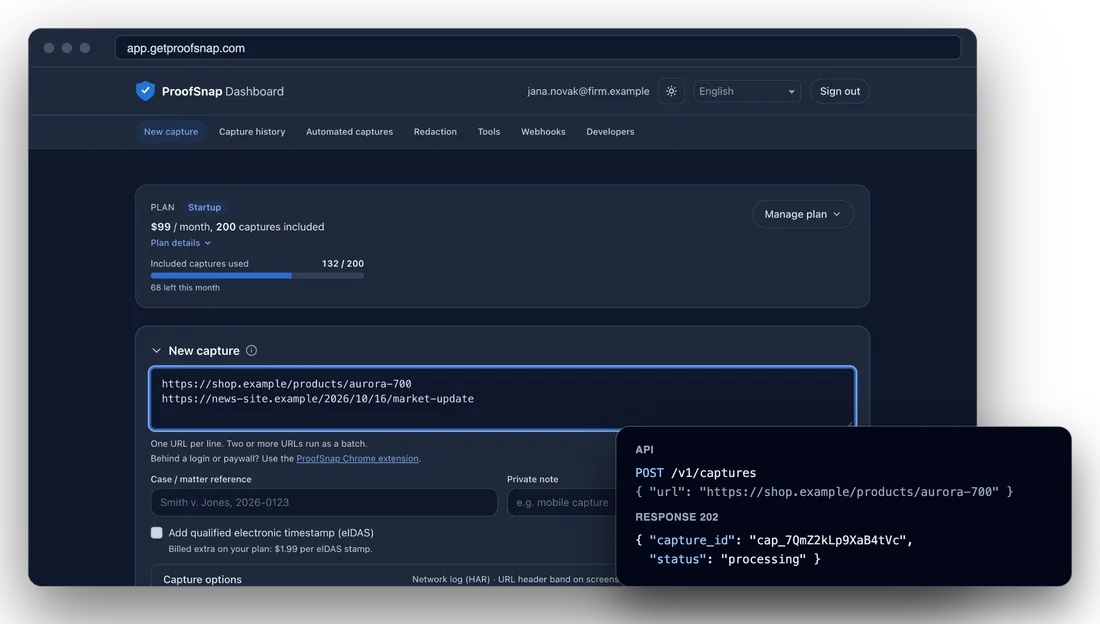
The ProofSnap Dashboard with a new capture, next to the same capture started through the API.
Before you start
- A ProofSnap Dashboard account on a paid plan. New to the dashboard? Start with Getting started with the dashboard.
- A completed web capture, made by hand or as one of your automated captures.
- A list of what has to go: names, numbers, passages. Find personal data catches the usual identifiers, but not names.
Step 1
Open Redaction
Sign in at app.getproofsnap.com and scroll to the Redaction section. Its note sums up the idea: Creates a redacted copy of the capture and seals it again. The original stays unchanged.
The quicker way in is Capture history: click Redact on the row of the capture you want to share. The dashboard scrolls to Redaction, selects that capture and loads it for you, so you can go straight to step 3.
Redaction is a paid tool. In sandbox mode the section is hidden, and the Redact icon in Capture history is grayed out with the tooltip Available on a paid plan. Choose a plan above. See Choose a plan if you are still in sandbox mode.
Step 2
Load the source capture
Under Source capture, type part of the address, the date or the capture ID, pick the capture from the list and click Load. The dashboard reads only the files it needs from the evidence package (the screenshot, the captured page text and the capture's address records) and opens the editor. Until you have a completed capture, the field says No completed captures available to redact yet.
- 1Source capture. A searchable list of your completed web captures, including automated captures. File certifications, comparisons, imported packages and earlier redactions are not offered.
- 2Load. Fetches the files the editor needs and opens the next two steps of the panel, Redact and Review and apply.
- 3Status line. Shows Loading capture and screenshot… while it works, or the reason if the capture could not be loaded.
Redaction
Creates a redacted copy of the capture and seals it again. The original stays unchanged.
Source capture
Source capture
3Loading capture and screenshot…
Step 3
Find personal data
Click Find personal data. The dashboard scans the captured page text for email addresses, US Social Security numbers, IBANs, phone numbers, IPv4 addresses and card numbers. Card numbers must pass the Luhn checksum, and dates, prices and reference numbers are filtered out of the phone matches. Nothing is preselected: you decide which values go.
- 1Find personal data. Runs the scan. If it finds nothing, it says No personal data was found in the captured text.
- 2Result count. Select all checks every value; Clear unchecks them.
- 3One row per value. The type and a masked preview: only the first two and the last two characters of longer values are shown, so the list itself does not expose the data. Each checked value becomes a text rule with the reason PII.
Names, postal addresses and free text are not detected. Add them in step 5.
Text to remove from all files
se••••••om+1••••••00DE••••••00Step 4
Black out areas of the screenshot
Under Screenshot areas, drag across the screenshot to draw a black box over anything you want removed, such as a photo, a signature or a block of text. Each box is numbered and gets its own card below the screenshot. In the finished package the boxed areas are solid black in the image data itself.
- 1Move or Draw. In Draw mode, dragging draws a box; in Move mode, it scrolls and pans. Phones and tablets start in Move so the page still scrolls. The zoom buttons and Undo sit next to the switch; Clear all asks before it removes every box.
- 2The box. Drawn in black and numbered like its card.
- 3What this box removes. Everywhere (screenshot and page text) is the default: the dashboard reads the text under the box and also removes it from the page files. Screenshot only covers the pixels alone, and the card warns that the text stays readable in the page text and metadata.
- 4Also remove this text from the page. The text read under the box, matched to the exact captured text. Correct it if needed. If nothing was read, type it yourself or switch the box to Screenshot only; until then Apply redaction stays disabled.
When the box holds a label and a number, such as a registration number, the card offers Also remove the number on its own, which removes the number wherever it appears without its label as well.
Drag across the screenshot to draw a black box over anything you want removed. Add as many boxes as you need.
Also remove this text from the page:
Step 5
Add text to remove from all files
For names, order numbers, case details or a privileged passage, click Add text and type the Exact text to remove. A text rule removes the text from the page HTML, the page text and the metadata (never from the capture URL, IDs, hashes or times), and blacks the text out on the screenshot where ProofSnap can locate it. One rule per row, as many rows as you need.
- 1Text row. The exact text, its reason and a remove button.
- 2Match case. When it is unchecked, the rule ignores letter case. Check it to remove only the exact spelling.
- 3Metadata redactions. One option, explained in the next step.
The capture URL is never changed. If a rule also matches the URL, the row says This text stays visible in the capture URL, which is never changed. One redaction can hold up to 200 boxes, 200 text rules and 100 metadata fields.
Text to remove from all files
Metadata redactions
Removes the captured site's IP addresses and DNS answers from the whole package.
Step 6
Remove IP addresses and DNS
A capture records which IP address the site answered from and what the DNS servers returned for it. If that is sensitive, for example for a small business that hosts its own server, check IP addresses and DNS under Metadata redactions. It removes the captured site's IP addresses and DNS answers from the whole package: the metadata, the logs and the custody record, and every place the same address appears in the page text.
The addresses of ProofSnap's own capture machine stay in the record, because they describe how the capture was made, not the site.
Step 7
Give each item a reason
Every box, text row and metadata option carries a reason. The redaction report prints the reason for each text rule, and redaction_manifest.json records the reason for every box and metadata option. The choices are GDPR, Privileged, PII, FOIA exemption and Other.
- Default reason for new items, at the top of the editor, sets the reason for each box and text row you add from then on. It defaults to GDPR.
- Change the reason for a single box on its card, or for a text row in that row's own reason menu.
- Values you check in Find personal data always carry the reason PII. The metadata option takes the default reason.
Step 8
Review and add the report details
Review and apply keeps a running summary of everything you marked. Read it before you apply: it is the last place to catch a box that only covers the screenshot or a box without text.
- 1Review before applying. The number of boxes and how many also remove page text, the number of text rules (Show lists them, personal data masked) and the metadata options.
- 2Reason summary. One line for the report, such as why the copy was prepared.
- 3Authorized by and Title. The person who approved the redaction. Title becomes available once a name is entered. Both are optional and printed on the redaction report.
- 4Apply redaction. Stays disabled until there is at least one item, every Everywhere box has its text and the text under every box has been read.
Review and apply
Review before applying
- Boxes: 1 (1 also from the page text, 0 screenshot only)
- Text removed from all files: 5 Show
- Metadata: IP addresses and DNS
Redaction report details (optional)
Reason summary
Authorized by
Title
Creates a new sealed package.
4Apply redactionStep 9
Apply the redaction and copy the rule key
Click Apply redaction. The button reads Redacting… while ProofSnap removes the marked content, hashes every file again, signs the new manifest with a new RSA-4096 key and submits it to OpenTimestamps. The result appears in the same panel as soon as the copy is sealed.
- 1Result row. The source address and the new ID of the redacted copy, marked Signed and timestamped, with Download ZIP.
- 2Copy rule key. Offered when the redaction removed text. Keep it to show later which rules were applied; ProofSnap does not store it. The package records a fingerprint of each text rule, not the rule itself. With the key you can show which rules produced the copy. It is offered only once, on this screen.
- 3Done. Closes the result and clears the source, ready for the next redaction.
red_8fK2mQx7Lp4vNs1T
Signed and timestamped
Download ZIP
Step 10
Read the warnings
After every redaction, ProofSnap checks the result again. Anything worth a second look appears under the result row (the counts below are examples):
- Check the screenshot: some occurrences of the text were not found on it (2). A text rule removed the text from the files, but ProofSnap could not place every occurrence on the screenshot. Look at the screenshot and box what is still visible.
- Similar occurrences of the text remain (3), for example in another letter case. A Match case rule, or a spelling without accents, left near matches. Add a rule for them if they must go too.
These two are advisory only: the copy is sealed and issued. An exact match is different. If any text you asked to remove is still found in the files after the redaction, ProofSnap issues no copy at all and charges nothing: Redaction stopped: some of the text to remove was still found in the evidence afterwards, so no redacted package was created. Check the spelling of your rules and apply again.
Step 11
Download and check the redacted package
Click Download ZIP. The redacted copy is a capture of its own: it appears under Past redactions, with the original's ID in the Redacted from column, and in Capture history with the type Redacted. The original capture is not touched and stays verifiable on its own.
- Carried over, redacted: screenshot.jpeg, page.html, domtextcontent.txt, metadata.json and forensic_log.json.
- Written anew: evidence.pdf (the redaction report, in the language of the original capture), chain_of_custody.json with the original's events plus the redaction, redaction_manifest.json, and the verification scripts and guide.
- Sealed anew: manifest.json, manifest.sig, publickey.pem and the OpenTimestamps proof. The manifest's derived_from block names the original capture.
- Left out: files that could still hold the removed content, such as page.mhtml, network.har, image copies and the C2PA sidecar. The file redaction_manifest.json lists every file left out.
You can check the copy like any package: see How to verify an evidence package. If the original capture is under legal hold, ProofSnap holds its completed redactions too and releases them when the original's hold is released. To keep redacted copies with the right case, file them in a matter: see How to organize web evidence in matters.
Automating this? Redaction is also an API route, with the webhook events Redaction completed and Redaction failed; see the API documentation.
Why not a blur or a black box in an image editor?
A blur or a box painted over screenshot.jpeg in an image editor changes one file. The same name or number is still in page.html, in the page text and often in the metadata, so anyone who opens the package can read it. And the edited screenshot no longer matches the hash in the signed manifest, so the package no longer verifies.
ProofSnap applies your rules to the screenshot, the page files and the records it carries, leaves out the files it cannot clean, records what was done and why, and seals the result as a new package that verifies on its own. Related guides: archive your website for regulators and monitor web page changes as evidence.
Common questions
Ready to share a redacted copy?
Open the dashboard, load a completed capture and follow the steps above. The original stays exactly as it was captured.
Open the ProofSnap DashboardMore: Getting started with the dashboard · API documentation · How to verify an evidence package