Step-by-step guide
Monitor web page changes as evidence
To monitor web page changes as evidence in 2026, set up an automated capture in the ProofSnap Dashboard in On change (monitor) mode. ProofSnap checks the text the server sends as often as every 5 minutes, saves a sealed, dated evidence package whenever a check finds the text has changed, and can send you an alert each time.
Use it to watch a competitor's claims, an infringing listing, a set of terms and conditions, a defamatory post or a price. The dashboard screens below are redrawn from the actual interface.
By Radim Motycka, Founder and Lead Engineer at ProofSnap, who built the dashboard, the API and the capture pipeline this guide walks through. ·
Checks as often as
Every 5 minutes
A sealed package
When the text changes
Checks with no change
Not billed
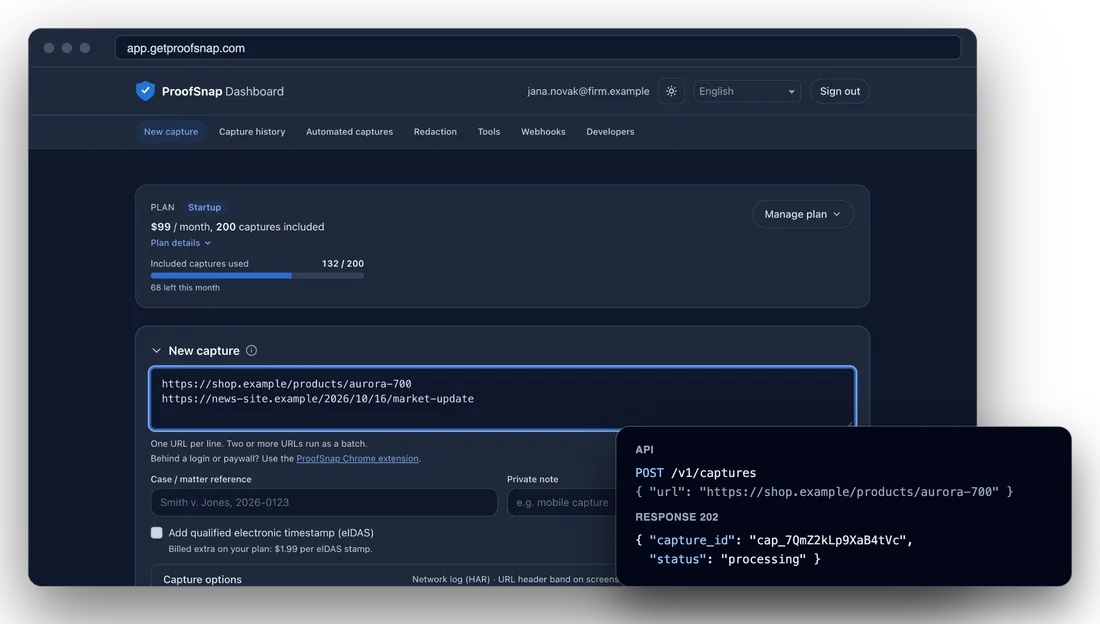
The ProofSnap Dashboard with a new capture, next to the same capture started through the API.
Before you start
- A ProofSnap Dashboard account on a paid plan. New to the dashboard? Start with Getting started with the dashboard.
- The address of a public page. Pages behind a login need the ProofSnap browser extension.
- For alerts: an HTTPS endpoint that can receive webhooks.
Step 1
Check what your plan allows
You set up monitoring in Automated captures, its own section of the dashboard. How many pages you can watch at once depends on your plan. Only active automated captures count: a paused one frees its slot. Sandbox mode (before you choose a plan) allows none. Plans and prices are in Choose a plan.
| Plan | Active at once | Most often |
|---|---|---|
| Developer, Solo, Company | 3 | Every 5 minutes |
| Startup | 25 | Every 5 minutes |
| Growth | 200 | Every 5 minutes |
| Website Archive | 30 | Once a day |
- 1Plan details. On the plan card, Plan details lists Automated captures with your limit.
- 2Counter. Next to the section title: how many of your slots are in use. When they are full, + New explains the limit instead of opening the form.
- 3Included captures and monthly maximum. Automated captures draw on the same monthly capture quota as everything else. Each capture beyond your plan's included captures is billed as overage. When your monthly maximum is reached, runs are skipped until the limit allows them again (step 6).
Plan details
Step 2
Create an automated capture
In Automated captures, click + New and paste the address of the page you want to watch. Then choose how it runs. To keep a record each time a check finds that the page text has changed, choose On change (monitor); an automated capture in On change (monitor) mode is called a monitor below. The check reads the text in the page source the server sends. For pages that load their content with JavaScript, such as many single-page apps, social posts and some listings, choose Fixed interval or Cron expression instead. Click Create when you are done; the new entry appears in the list above the form.
- 1Mode. Fixed interval makes a full capture at every run. On change (monitor) checks the page at every run and captures it when its text has changed. Cron expression runs at times you set (for example
0 9 * * 1, Mondays at 9:00), with an optional Time zone that defaults to UTC. - 2Cadence. Every 5, 15 or 30 minutes, hourly, every 6 hours, daily or weekly. In On change (monitor) mode it sets how often the page is checked.
- 3Full capture. Only when the page changes, or At least every 30, 90, 180 or 365 days. With the second option, a full capture is also taken when the newest one is older than that, even if nothing changed. Useful when you need a fresh dated copy on file at regular intervals.
- 4Alert. On any change, or Only on text changes. With the second option, no alert is sent when the comparison with the previous capture finds no change in the visible text. Step 5 sets up where alerts go.
- 5Case / matter reference and eIDAS. The reference goes into every package. The eIDAS checkbox adds to each full capture a qualified electronic timestamp under the eIDAS Regulation, issued by Disig a.s., a Qualified Trust Service Provider on the EU Trusted List, at $1.99 per timestamp.
- 6Capture options. The same options as for a single capture: the evidence PDF language, full-page scroll, consent banner and popup dismissal, the network log (HAR) and more. In On change (monitor) mode they apply to the full capture taken when a change is detected.
Automated captures
Mode
Cadence
Captures run only when the page changes, so the number depends on the page. Your monthly maximum is 4,000 captures.
Full capture
Alert
Case / matter reference
Billed extra on your plan: $1.99 per eIDAS stamp.
Monitoring runs a lightweight probe each cycle; capture options apply to the full capture taken when a change is detected.
Step 3
Read the cost estimate
Before you click Create, a line below the cadence (or the cron expression) says how often the schedule will run in a month and what it adds to your bill. It updates as you change the cadence or check the eIDAS box. The estimate assumes a 30-day month and is capped at your monthly maximum, the number of captures after which ProofSnap stops capturing for the month.
- 1Within your plan. Daily on Startup is about 30 runs, within the 200 included captures, so the line shows only the number.
- 2Beyond your plan. Hourly on Startup is about 720 captures, 520 of them beyond the 200 included, at $0.60 each. With eIDAS checked, every run adds $1.99 as well.
- 3On change (monitor). How many captures run depends on how often the page changes, so the line shows your monthly maximum instead of a price.
- 4Too frequent. For a cron expression that runs more often than your plan allows, the line says so instead of showing a price, and ProofSnap does not create the schedule. Cadences that are too fast for your plan cannot be picked.
Cadence
This schedule runs about 30 times a month.
Cadence
Estimated extra cost: about $312 / month. About 720 captures a month: $312 for the captures beyond the 200 included.
Mode
Captures run only when the page changes, so the number depends on the page. Your monthly maximum is 4,000 captures.
Cron expression
Too frequent: your plan allows automated captures at most once every 5 minutes.
Step 4
Know what each run produces
A Fixed interval or Cron expression schedule makes a full capture at every run, changed or not. That is the right choice when you need a copy at set times. On change (monitor) is built for tracking changes over time: it keeps a record of each detected version without filling your history with identical copies.
- 1First run. A full capture: the starting version that later changes are compared against. It is made once a check finds readable text in the page source; for a page whose text is loaded by JavaScript, use a Fixed interval or a Cron expression.
- 2No change. Each cycle runs a lightweight check of the text in the page source the server sends. When the text is the same, no package is made and nothing is billed.
- 3Text changed. A full capture with the capture options you set. ProofSnap then compares it with the previous capture and sends the result with the alert (step 5).
- 4A copy is due. With Full capture set to at least every N days, a full capture is also taken when the newest one is older than that.
Every full capture is a complete evidence package: screenshot, page HTML and text, evidence PDF, SHA-256 hashes, an RSA-signed manifest submitted to OpenTimestamps (Bitcoin), and the eIDAS timestamp if you selected it. See How to verify an evidence package.
On change (monitor), run by run
- 1Oct 1, 09:00Sealed package
First version on record.
- 2Oct 1, 10:00 to Oct 14, 15:00
Hourly checks, text unchanged: no package.
- 3Oct 14, 16:00Sealed package
Text changed: full capture, comparison, alert.
- Oct 14, 17:00 onward
Hourly checks against the new version.
- 490 days after the last captureSealed package
No change, but a copy is due.
Step 5
Get an alert when the page changes
Alerts are delivered as webhooks to an endpoint you control, such as an automation tool or your own system. Open Webhooks and click + New webhook. Each delivery is signed, and the signing secret is shown only once, right after you create the webhook: copy it then.
- 1Endpoint URL (https). The public HTTPS address that receives the events.
- 2Events. Page change detected fires after the full capture that records a change, with the captures before and after the change and the comparison results for text, images and metadata. Automated capture paused tells you when ProofSnap pauses one (step 6).
- 3Filter (optional). One automated capture limits the webhook to one page you watch; One website (host) to one site.
- 4Create webhook. Saves it. The list shows each webhook's last delivery.
Webhooks
+ New webhookEndpoint URL (https)
Events
Filter (optional)
Automated captures
Step 6
Watch the status of your automated captures
The list under Automated captures shows every page you watch. Edit opens the form with its settings, Pause and Resume stop and restart it, and Delete removes it (the captures it already made stay in Capture history).
- 1Cadence. How it runs and how many captures it has made so far. An automated capture in On change (monitor) mode also shows its Alert setting.
- 2Skipped run. An active automated capture whose last run hit a limit stays active and runs again by itself. The note says which: monthly limit reached, company monthly limit reached, too many captures running at once or daily test capture limit reached.
- 3Paused, with the reason. ProofSnap pauses an automated capture and shows one of these reasons: failed 5 times in a row, invalid schedule, no active billing or, after a plan change, not included in your plan. Reaching your monthly maximum does not pause it: the run is skipped instead (callout 2). Fix the cause, then click Resume.
- 4Next run. When the next check or capture is due.
Automated captures
2 / 25 active| Source | Cadence1 | Next run4 | Status | |
|---|---|---|---|---|
https://competitor.example.com/pricing eIDAS · Acme v. Rival, 2026-0457 | On change (monitor) · 4× Alert: Only on text changes | 10/21/2026, 4:00 PM | ● Active | EditPauseDelete |
https://shop.example.com/listing/4821 | Hourly · 212× | 10/21/2026, 4:00 PM | ● Active (last run skipped, monthly limit reached)2 | EditPauseDelete |
https://example.org/terms | Daily · 9× | - | Paused (failed 5 times in a row)3 | EditResumeDelete |
Step 7
See the timeline in Capture history
Every full capture a monitor makes lands in Capture history, next to your other captures. To see one page's versions in order, filter the list by its automated capture. Download any version as its own evidence ZIP.
- 1Filters. Under Automated capture, pick the page. You can narrow it further by date.
- 2Server filter. A line above the list names the filter, and Clear the server filter shows everything again.
- 3Automated. The type column marks each capture the monitor made, next to the device it was captured on.
Capture history
1FiltersAutomated capture
2Filtered on the server: automated capture https://competitor.example.com/pricing
- Completed
Oct 14, 2026, 4:01 PM
Desktop · Automated3
- Completed
Oct 6, 2026, 11:02 AM
Desktop · Automated
- Completed
Oct 1, 2026, 9:01 AM
Desktop · Automated
Step 8
Compare two captures
To show what changed between two versions, open Tools, then Compare captures. Choose the earlier capture as Before and the later one as After, and click Compare. The comparison is sealed as its own evidence package, with a report of the text, images and metadata that changed, and appears in Capture history with the type Compare. It counts as one capture toward your monthly usage.
- 1Before and After. Both captures must be completed web page captures. Swap reverses the order. Captures taken on a different device or with different settings get a warning, because the text and layout can differ even when the content has not changed.
- 2Comparison report. The evidence PDF language and an optional eIDAS timestamp, as for a capture.
- 3Result. A one-sentence summary first, then the images, text and metadata that changed. The share of changed text and the lines added and removed are counted line by line.
- 4What changed on the page. The removed and added text, each with how far down the page it appears.
Compare captures
Before
After
Comparison report
The page content changed.
Images changed
0 from the page's site
Text
2.4% changed
Lines: +1 / −1
Metadata
0
What changed on the page
≈% shows how far down the page a change is (0% = top, 100% = bottom).
Removed
Starter plan: $19 per month
≈12%
Added
Starter plan: $24 per month
≈12%
Step 9
Place a legal hold on key captures
When a version becomes important, for example the capture that shows the infringing listing or the post before it was edited, keep it from being deleted. Open the capture in Capture history and click Place legal hold. Legal hold is available on paid plans, for live (non-test) captures only. Holds are released when your subscription ends, unless you stay on a plan that retains your data.
- 1What it does. While the hold is in place and your account stays on a plan that retains your data, the capture cannot be deleted, either manually or automatically when its retention period ends.
- 2Reason (optional). A short note on why, kept with the hold.
- 3Place legal hold. Confirms it. The capture then carries the Legal hold badge, and a comparison made from it is held with it.
To hold several captures at once, select them in Capture history and use the bulk action, or place a hold on every capture from one domain. For a whole case, group the captures in a matter: see How to organize web evidence in matters. Need to share a capture without personal data? See How to redact a web capture.
Place legal hold
1A capture under legal hold cannot be deleted, either manually or automatically when its retention period ends.
Reason (optional)
Step 10, for developers
Automate monitors with the API
Watching many pages, or pages your own system finds? On an API plan, the steps above are also available through the ProofSnap API with an API key from Developers. On Website Archive, API keys are read-only, so create automated captures in the dashboard. The API documentation describes every field and error.
POST /v1/scheduled-capturescreates a monitor:modeinterval, cron or on_change,interval_seconds,max_capture_age_seconds,alert_onand an optionalwebhook_url.GET,PATCHandDELETE /v1/scheduled-captures/{schedule_id}read, change, pause or remove it;GET /v1/scheduled-captures/{schedule_id}/runslists its 50 newest captures.POST /v1/webhook-subscriptionssubscribes an endpoint tomonitor.change_detectedandschedule.paused.POST /v1/comparecompares two captures;POST /v1/legal-holdsplaces or releases holds in bulk, for example on every capture of one schedule.
Create a monitor
curl -X POST "https://api.getproofsnap.com/v1/scheduled-captures" \
  -H "Authorization: Bearer ps_live_YOUR_KEY" \
  -H "Content-Type: application/json" \
  -d '{
    "url": "https://competitor.example.com/pricing",
    "mode": "on_change",
    "interval_seconds": 3600,
    "max_capture_age_seconds": 7776000,
    "alert_on": "text"
  }'
7776000 seconds is 90 days.
Common questions
Keeping your own website on record instead? See How to archive your website for regulators.
Start watching a page
Open the dashboard, go to Automated captures and click + New to put your first page on record.
Open the ProofSnap DashboardMore: Getting started with the dashboard · API documentation · How to verify an evidence package