Step-by-step guide for law firms
Organize web evidence for a case in ProofSnap Matters
To organize web evidence for a case in 2026, open the ProofSnap Dashboard on a Solo or Company plan, create a matter, capture pages straight into it or add earlier captures, then seal the matter and export one ZIP with Bates-numbered exhibits, a load file and the hash-linked chain of custody.
A matter is ProofSnap's digital evidence management workspace for web captures, one per case. Every screen below is redrawn from the dashboard's own interface. The guide follows one case from the first capture to the package you hand to opposing counsel or the court.
By Radim Motycka, Founder and Lead Engineer at ProofSnap, who built the dashboard, the API and the capture pipeline this guide walks through. ·
Plans
Solo or Company
Seal
OpenTimestamps (Bitcoin)
Export
One ZIP per matter
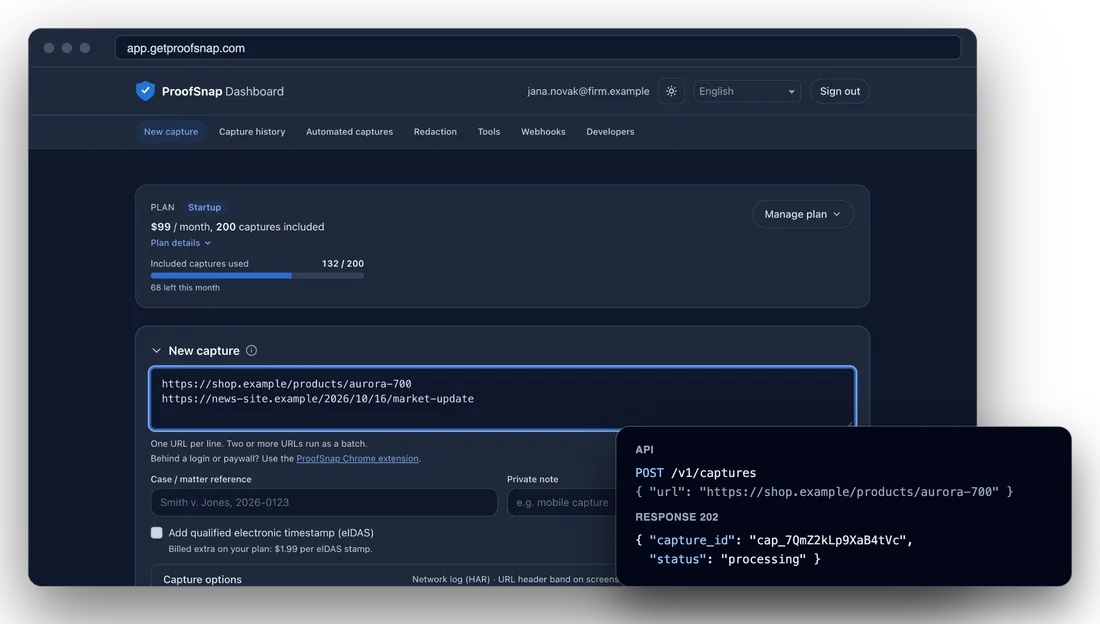
The ProofSnap Dashboard with a new capture, next to the same capture started through the API.
Before you start
- A ProofSnap Dashboard account on the Solo or Company plan, with a confirmed email address. See choosing a plan.
- The URLs of the pages you want as evidence. The dashboard captures public pages; packages made with the ProofSnap extension can be added to a matter as well.
- For a team, the Company plan with a seat for each colleague who works on the case.
Step 1
Create a matter for the case
A matter is the workspace for one case: the captures you collect for it and a tamper-evident chain of custody of everything that happens to them. On Solo or Company, Matters comes right after the plan card. Click + New matter to open the form.
- 1+ New matter. Opens the form above the list.
- 2Matter name. The only required field. Name it after the case, for example after the parties.
- 3Client, Case number, Opposing party, Jurisdiction. All optional. The case number is important: the export builds its Bates prefix from it. You can fill in or change these later with the pencil icon next to the matter name, and each change is recorded as Matter updated.
- 4Create matter. The matter opens with the status Open and the chain of custody starts with Matter created.
- 5The list. One row per matter with its client, case number, status, number of captures and the date of the last change. Click a row to open it.
Matters
1+ New matterNorthwind v. Contoso
Northwind Ltd · 2026-CV-0098 · 7 · Oct 20, 2026
Step 2
Capture straight into the matter
On a Legal plan, New capture has an extra field, Add to matter. Pick the matter before you click Capture, and every page in the batch is added to the matter as soon as the capture is submitted. Nothing has to be sorted afterward. How a capture itself works is described in making your first capture.
- 1URLs. One per line. Two or more URLs run as a batch, and all of them go to the same matter.
- 2Add to matter. Lists your open matters with their case numbers. The default, No matter (standalone), keeps the capture out of every matter. Sealed matters do not appear, and neither do archived ones (set aside with Archive in the matter's menu; an archived matter takes no new captures until you unarchive it).
- 3Capture. When the capture is submitted, the chain of custody records Capture added to matter. If a capture cannot be added, the dashboard says so and you can add it from the matter later.
New capture
https://example.com/reviews
One URL per line. Two or more URLs run as a batch.
Add to matter
Step 3
Add earlier captures from Capture history
Evidence often starts before the case does. Open the matter and stay on the Captures tab: Add captures lets you file pages you captured earlier, and it can also bring in packages you made elsewhere. Every addition and removal is written to the chain of custody.
- 1The matter header. Name, status and the details you entered, followed by the actions you use at the end: Seal matter, Share link and Export.
- 2Tabs. Captures, Members and History, each with a count.
- 3From capture history. Opens a search box (Search your captures to add…) with your completed captures that are not in a matter yet, grouped by page. Select them, or select a page to add its whole timeline, then click Add selected. The chain of custody records Capture added to matter.
- 4Add evidence package. Uploads an existing ProofSnap package, for example one made with the browser extension. ProofSnap verifies it first and adds it only when it checks out.
- 5Remove. Takes a capture out of the matter. The capture stays in Capture history, and the chain of custody records Capture removed from matter.
Matters / Smith v. Acme
Smith v. Acme
OpenClient: Jane Smith · Case number: 2026-CV-0142 · Acme Corp · Superior Court of Example County · Created Oct 21, 2026
3From capture history
4Add evidence package
https://example.com/listing
cap_7Qm2c9Xa
https://example.com/reviews
cap_K3vT81pR
Step 4
Read the chain of custody
The History tab holds two logs. The Chain of custody records what happened to the evidence: the matter was created, a capture was added or removed, a member was added or removed, the matter's details were updated, or a legal hold was placed on or released from one of its captures. Each event carries the hash of the event before it, so a changed, deleted or inserted event breaks the chain. The Access log records who downloaded, viewed or exported what, and is kept outside the hash chain.
- 1Verify integrity. Recomputes the SHA-256 hash of every event in your browser and checks each link and the stored head of the chain. A good result reads Chain intact: 6 events, all hashes verified. A broken one names the event: Tampering detected at event #…
- 2Events. When, Action, Performed by (the email address of the person) and Item (the captured URL with its capture ID). A completed capture can be downloaded right from its row, and that download is logged.
- 3Show hash. Shows the event's sequence number and its Integrity (hash), the value the next event links to.
- 4Access log. When, Action, Performed by and IP. Only the matter owner sees the IP addresses, and the access_log.json in an export carries none.
Chain of custody
1Verify integrityChain intact: 6 events, all hashes verified.
Access log
Step 5
Put the matter under legal hold
Once a dispute is likely, the evidence must not disappear. A legal hold on the matter covers all the captures in it in one step (except test captures and captures in the trash). A capture under legal hold cannot be deleted, either manually or automatically when its retention period ends. Only the matter owner can place or remove the hold. It requires a paid plan and also works on a sealed matter.
- 1Legal hold on this matter. Check it and confirm with Place legal hold. The dashboard reports Matter legal hold placed. Captures held: … and the date appears next to the box.
- 2Captures added later. They are held as soon as they join the matter.
- 3On the capture. Its details show the source of the hold, From matter …. That hold can be released only by removing it from the matter; holds you placed on individual captures stay in place.
Smith v. Acme
Open2Holds all captures in this matter, including ones added later.
This capture cannot be deleted while the legal hold is on.
Source: From matter Smith v. Acme
Step 6, for teams
Give colleagues access on the Company plan
On the Company plan, each colleague has their own login and seat. First invite them to the company under Members on the plan card: they accept in their own dashboard and take one seat each (see adding colleagues). Captures made for the company belong to the company, and the company owner can see them. Then add each colleague to the matters they work on.
- 1Members tab. Lists everyone in the matter, with owner next to the person who created it and you next to yourself.
- 2+ Invite a colleague to this matter. Enter their email address and click Add member. Only a member of your company account with a confirmed email address can be added, and a matter can have up to 50 members. The chain of custody records Member added.
Who may do what. Any member can add captures to an open matter and read its history. Editing the details, managing members, placing a legal hold, sealing, sharing and exporting are reserved for the matter owner.
- ana@firm.exampleowneryou
- ben@firm.exampleRemove
2+ Invite a colleague to this matter
Needs a seat in your company.
Step 7
Seal the matter
When the evidence for the case is complete, seal the matter. Sealing fixes the chain of custody as it stands: the current head hash, which depends on every event before it, is submitted to OpenTimestamps, so anyone can later check that the chain existed in this form no later than the time of the Bitcoin block that confirms it. On a paid account (not in test mode), ProofSnap also requests a qualified eIDAS timestamp of the same hash for the seal, at no charge. If the eIDAS timestamp is refused or unavailable, the matter is sealed with OpenTimestamps only. If the eIDAS timestamp does not arrive in time, nothing is sealed and you can try sealing again.
- 1The confirmation. Read it before you click: sealing cannot be undone. ProofSnap refuses to seal while any of the matter's captures is in the trash; restore it or remove it from the matter first.
- 2Seal matter. The button reads Sealing… while the timestamp is requested.
- 3Sealed. The status changes to Sealed and a line shows the date and the start of the anchored hash. From now on, no capture can be added or removed, the details and members are fixed, and the matter's captures cannot be deleted by hand. Export, Share link and the legal hold still work.
Are you sure?
Seal this matter? Sealing submits the current head hash of the custody chain to OpenTimestamps (Bitcoin) and locks the matter, so captures can no longer be added or removed. This cannot be undone.
Smith v. Acme
SealedSealed Oct 28, 2026, 16:05. Custody head hash submitted to OpenTimestamps (Bitcoin). sha256:9b41e07c2d55a8f30…
Step 8
Export the matter for litigation
The export turns the whole matter into one ZIP you can hand over, file or load into a review platform. It works on open and sealed matters and is available only to the matter owner. If you export after sealing, the package includes the seal too. Each export is recorded as Evidence export generated in the Access log.
- 1Language code. The code next to Export shows the language of the export: by default, the dashboard's language.
- 2Export language. The only export option in the dashboard. It sets the language of the human-readable documents: the custody report, the exhibit index, the exhibit stickers and README.txt. File names and the machine-readable files stay the same in every language.
- 3Export. Shows Exporting…, then starts the download and confirms how many captures and custody events were included. A large matter is prepared in the background; the dashboard waits for it.
Smith v. Acme
Sealed2Export language
Export ready: 3 captures, 9 custody events. Download started.
Step 9
Check what the export contains
Unzip the export and start with README.txt, which describes each file and folder in it. A dashboard export always includes Bates numbering and the e-discovery load file; there is no switch for them.
- 1The record of the matter. custody_report.pdf (the human-readable chain of custody), custody_log.json (the raw hash-chained events), matter.json (the matter's details and its seal) and access_log.json if anything has been downloaded or viewed.
- 2The originals. captures/ holds the sealed evidence package of each completed capture (up to 300 captures and 800 MB per export), byte for byte, plus the upgraded OpenTimestamps proof once the Bitcoin anchor is confirmed. These are the files you verify.
- 3Bates-numbered exhibits. exhibits/ holds a copy of each capture's evidence PDF with an exhibit sticker on the first page and a Bates number on every page. Exhibit 1 and the first Bates number go to the oldest evidence. The prefix is the case number in uppercase, without spaces or dashes (up to 12 characters), or the matter name when there is no case number, followed by six digits. exhibit_index.pdf and exhibit_index.csv list each exhibit with its Bates range and capture.
- 4Load file. load/ is a production set in the Concordance/Opticon format that review platforms such as Relativity, Everlaw and Logikcull import: a Concordance .dat and an Opticon .opt under DATA/, the stamped PDFs under IMAGES/, the captured HTML under NATIVES/ and the page text under TEXT/.
PDF/A. ProofSnap also converts the stamped copies to PDF/A when the converter is available and time allows. A copy carries a PDF/A claim only when it was actually converted.
README.txt
custody_report.pdf1
custody_log.json
matter.json
access_log.json
captures/2
cap_7Qm2c9Xa.zip
cap_7Qm2c9Xa.upgraded.ots
exhibits/3
Exhibit-001.pdf
Exhibit-002.pdf
exhibit_index.pdf
exhibit_index.csv
load/4
DATA/loadfile.dat
DATA/loadfile.opt
IMAGES/001/2026CV0142000001.pdf
NATIVES/001/2026CV0142000001.html
TEXT/001/2026CV0142000001.txt
README.txt
Step 10
Share it with opposing counsel or the court
Send the export ZIP the way you exchange other productions. The recipient does not need ProofSnap to check it. Each package under captures/ can be dropped into the Trust Verifier, which checks the hashes and the signature in the browser, so the captured content never leaves the recipient's computer; only the timestamp proofs are sent for checking. Each package also carries verification/verify.sh and verify.ps1 for an offline check (see how to verify an evidence package). README.txt explains how to recompute the custody chain and check the seal.
- 1Share link. Available only to the matter owner. It creates a public verify link and copies it to your clipboard.
- 2What the link shows. The matter name, case number, jurisdiction, organization and chain of custody, which the recipient's browser checks again. Captured content is not shown, so the link is for verification, not for delivering the evidence. On a company matter, the company name you set for your firm appears there after Attested by.
- 3Copy, Open link, Revoke. Revoke ends access for anyone holding the link. Creating and revoking links are recorded in the Access log.
Public verify link ready
Anyone with this link can verify the matter. Copied to your clipboard.
2Anyone with this link can see the matter name, case number, jurisdiction, organization and chain of custody. Captured content is not shown.
Step 11
Plan how long the evidence is kept
Cases outlast subscriptions, so decide early where the record will live. ProofSnap keeps captures while your plan is active, up to 10 years from when the capture was made (for imported packages, from the import). For automated captures, the period runs from the last check that found the page unchanged; see monitoring a page for changes.
- 1Held and sealed matters are protected while your plan is active. A legal hold blocks deletion, even at the end of the retention period. A capture in a sealed matter cannot be deleted by hand, but it is deleted when its retention period ends unless it is under legal hold.
- 2Changing plans. While you have matters, you can switch only to another Legal plan or to Archive only. On any other plan, your matters would no longer be accessible, so export them first.
- 3When a subscription ends. Captures are kept for 30 days and then permanently deleted. A legal hold is kept only while you have a plan that keeps your data, so held captures are deleted with the others.
- 4Archive only. For $9 a month, it keeps every package readable, downloadable and verifiable and your matters available to view and export, but you cannot make new captures. A Company plan has its own company archive for the captures and matters of every seat.
Your own copy of the export is independent of ProofSnap: every package in it can be verified without the service. Related guides: redacting a web capture before you produce it, and archiving your own website for regulators.
Common questions
Open your first matter
On the Solo or Company plan, Matters comes right after the plan card. Create one for your next case and capture straight into it.
Open the ProofSnap DashboardMore: Getting started with the dashboard · API documentation · How to verify an evidence package